Organize media first
Use one folder per project with separate subfolders for footage, music, fonts, overlays, and final exports.
Learn the practical ways to use Alight Motion on a larger screen, what an Android emulator changes, which system resources matter, and how to move projects safely.
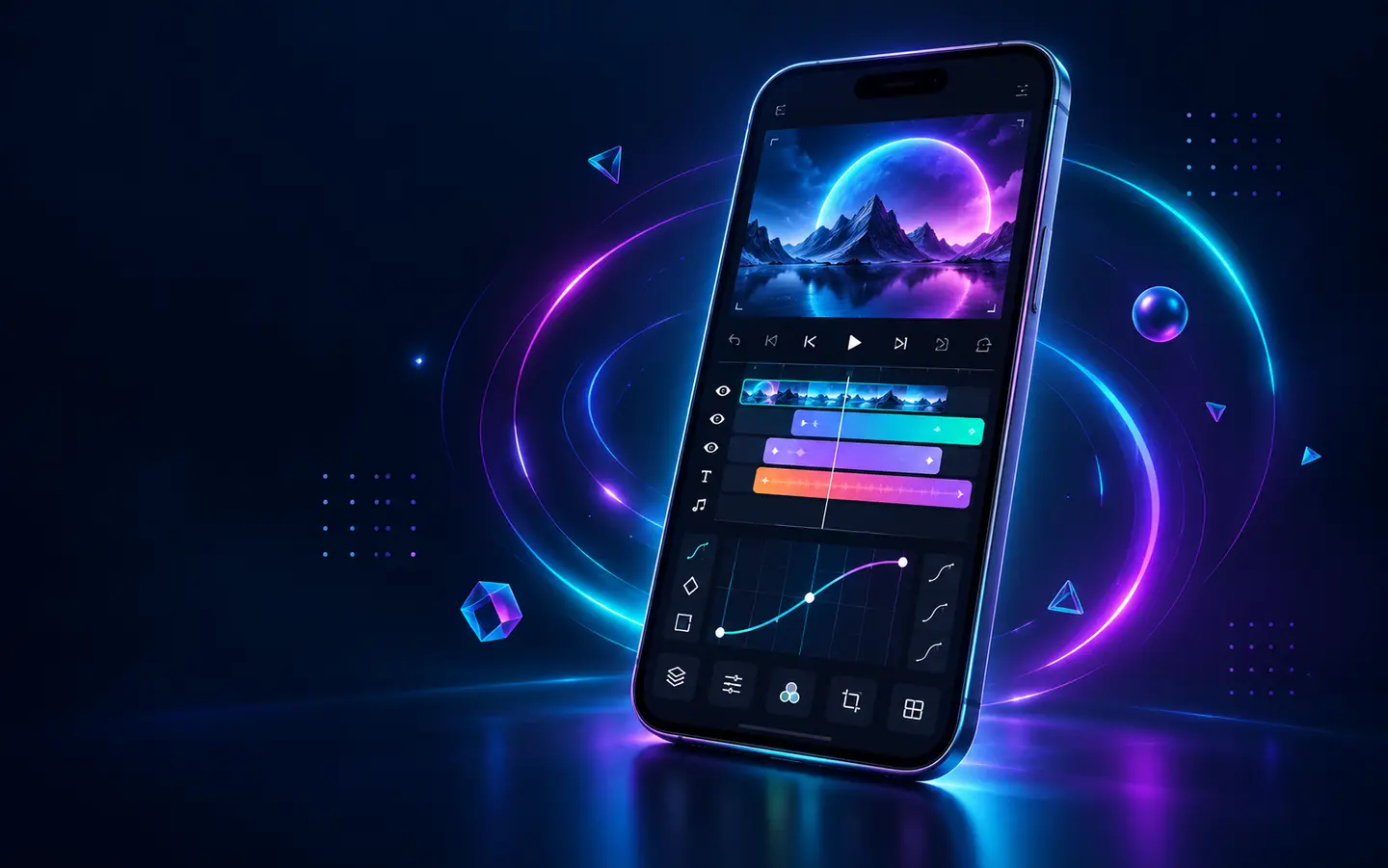
Alight Motion is designed first for phones and tablets. A native Windows edition is not advertised on the official Alight Motion website, so Windows users normally run the Android app inside an emulator. That gives you a larger canvas and keyboard access, but the app still behaves like the mobile version.
Apple lists Alight Motion for iPhone, iPad, and compatible Mac devices. Availability on a particular Mac depends on its hardware, operating-system version, and the current App Store listing. Check the listing on the device rather than downloading a file labelled as a Windows or macOS installer from an unknown page.
An emulator adds its own overhead. These are practical recommendations for a smoother multi-layer editing workflow, not official guarantees.
| Component | Minimum for testing | Recommended for regular editing |
|---|---|---|
| Operating system | 64-bit Windows 10 or a currently supported macOS release | Windows 11 or current macOS |
| Memory | 4 GB RAM | 8–16 GB RAM |
| Processor | Modern dual-core CPU with virtualization | Recent four-core or better CPU |
| Storage | 5 GB free beyond the emulator | SSD with 15 GB+ free |
| Graphics | Integrated graphics with current drivers | Dedicated or recent integrated GPU |
| Virtualization | Enabled in BIOS/UEFI for most emulators | Enabled and verified |
Download an emulator only from its official website. Review its current Windows requirements before installation.
If performance is poor, confirm Intel VT-x or AMD-V is enabled. The exact BIOS/UEFI steps depend on the computer manufacturer.
Use the emulator’s Play Store and locate the listing published by Alight Creative, Inc. This is easier to verify than a repackaged desktop installer.
Media access is required when importing local clips. Review every additional permission instead of accepting it automatically.
Create a dedicated shared folder for source files and exports. Start with 1080p and a modest frame rate before attempting heavier projects.
Open the Mac App Store and search for Alight Motion. If the official listing is compatible with your Mac, install it from there and keep updates tied to the same Apple ID. If it is unavailable for your hardware, an Android emulator is an alternative, but it introduces the same performance and file-sharing limitations as Windows.
A mouse can make fine timeline adjustments easier, while a trackpad is useful for zooming and scrubbing. Keep important project packages outside temporary emulator folders so an emulator reset does not erase the only copy.
Use one folder per project with separate subfolders for footage, music, fonts, overlays, and final exports.
Large resolutions, many effects, and overlapping video layers increase memory pressure. Build the edit first, then raise export quality.
Export a project package before changing emulator versions or reinstalling the app. Local projects may not be cloud-backed.
| Problem | Likely cause | What to try |
|---|---|---|
| App does not open | Unsupported emulator image or outdated graphics driver | Update the emulator and GPU driver; try a supported Android instance |
| Timeline is slow | Insufficient RAM or too many active layers | Allocate more memory carefully and simplify the preview |
| Media is missing | Shared folder is not mounted | Re-select the emulator’s shared-media directory |
| Export stops | Resource or codec pressure | Export from the project list, reduce resolution/frame rate, or simplify heavy sections |
| Black preview | Rendering compatibility issue | Change the emulator graphics mode and restart the instance |
Core product facts on this page were checked against the following official or developer-controlled sources. Availability and requirements can change after publication.
Version, requirements, features, and installation guidance.
Read page →Reduce memory pressure and diagnose failed exports.
Read page →Official App Store route and iPhone/iPad workflow.
Read page →